How to create a quote in Flowody
A quote in Flowody is the starting point for most jobs. Once the customer approves it, you can convert the same quote straight into a job and then into an invoice, so nothing gets retyped.
Open the Quotes list
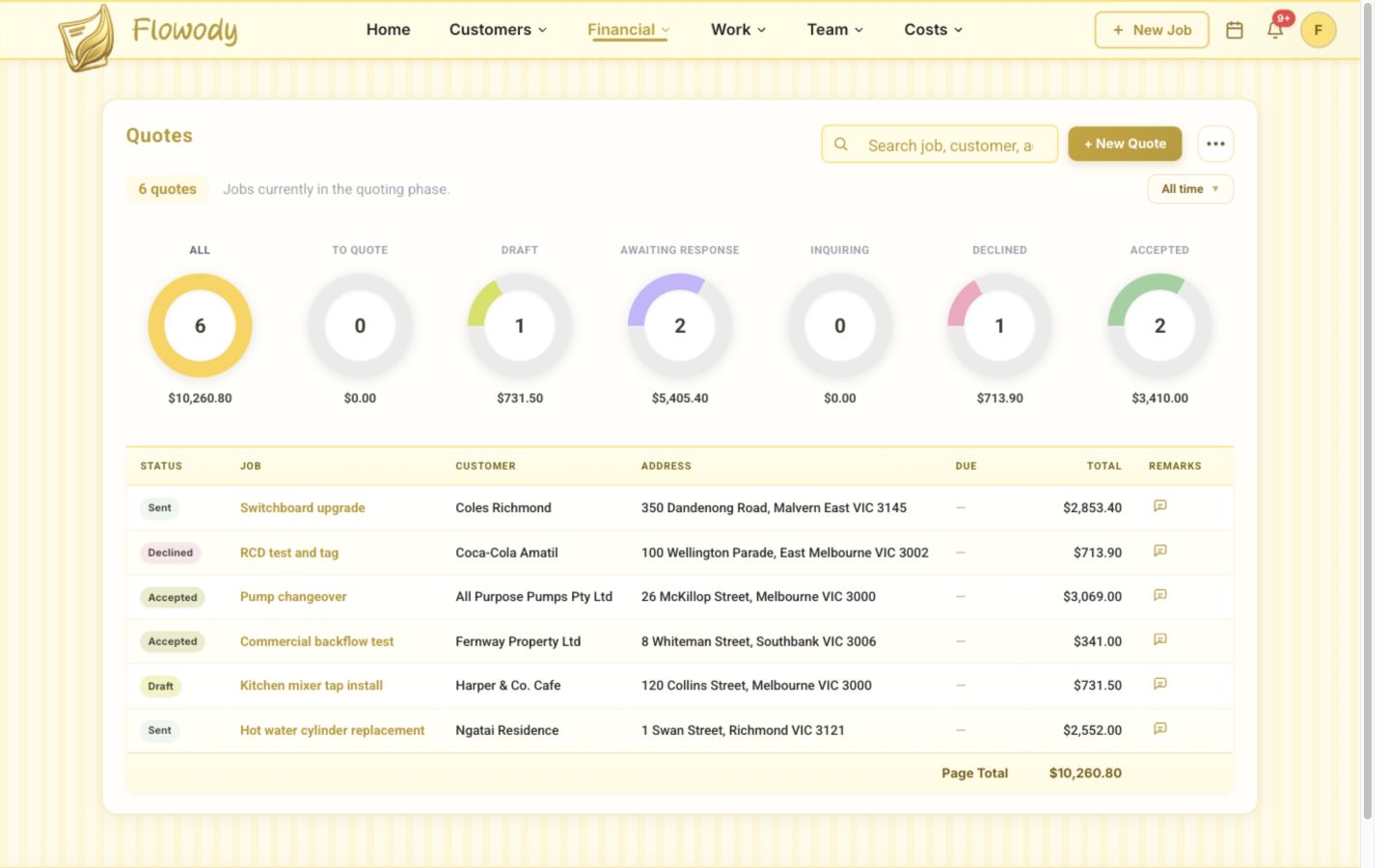
Open Financial in the top navigation and select Quotes. The page shows existing quotes, their current statuses and totals, with + New Quote in the upper-right.
Choose the customer
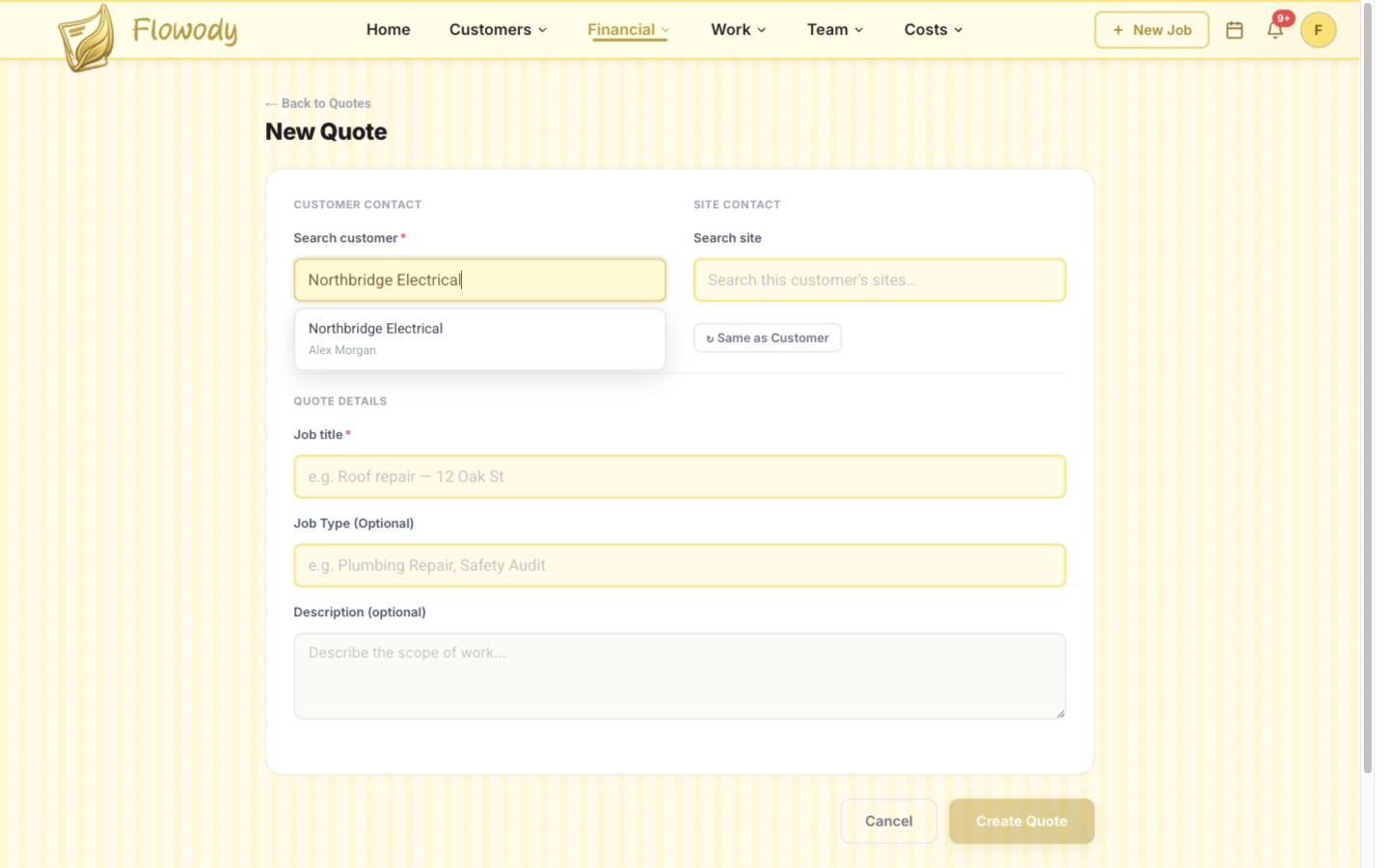
Select + New Quote, search for the customer, then choose the matching customer from the selector. Use + Create new Customer when the customer does not already exist.
Set the work site
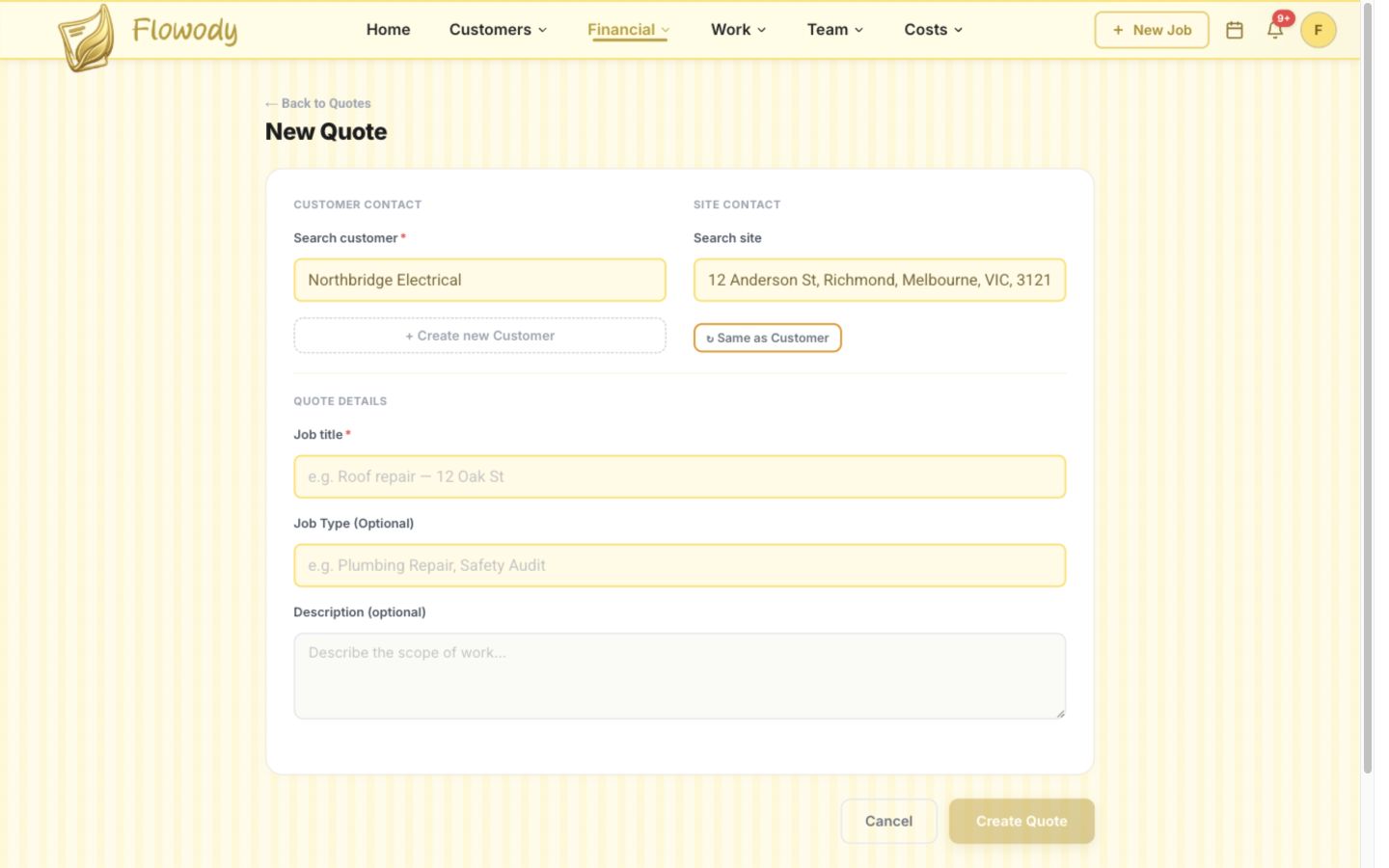
Search for the customer's site under Search site, or select Same as Customer to copy the customer's physical address into the quote.
Add the work and materials
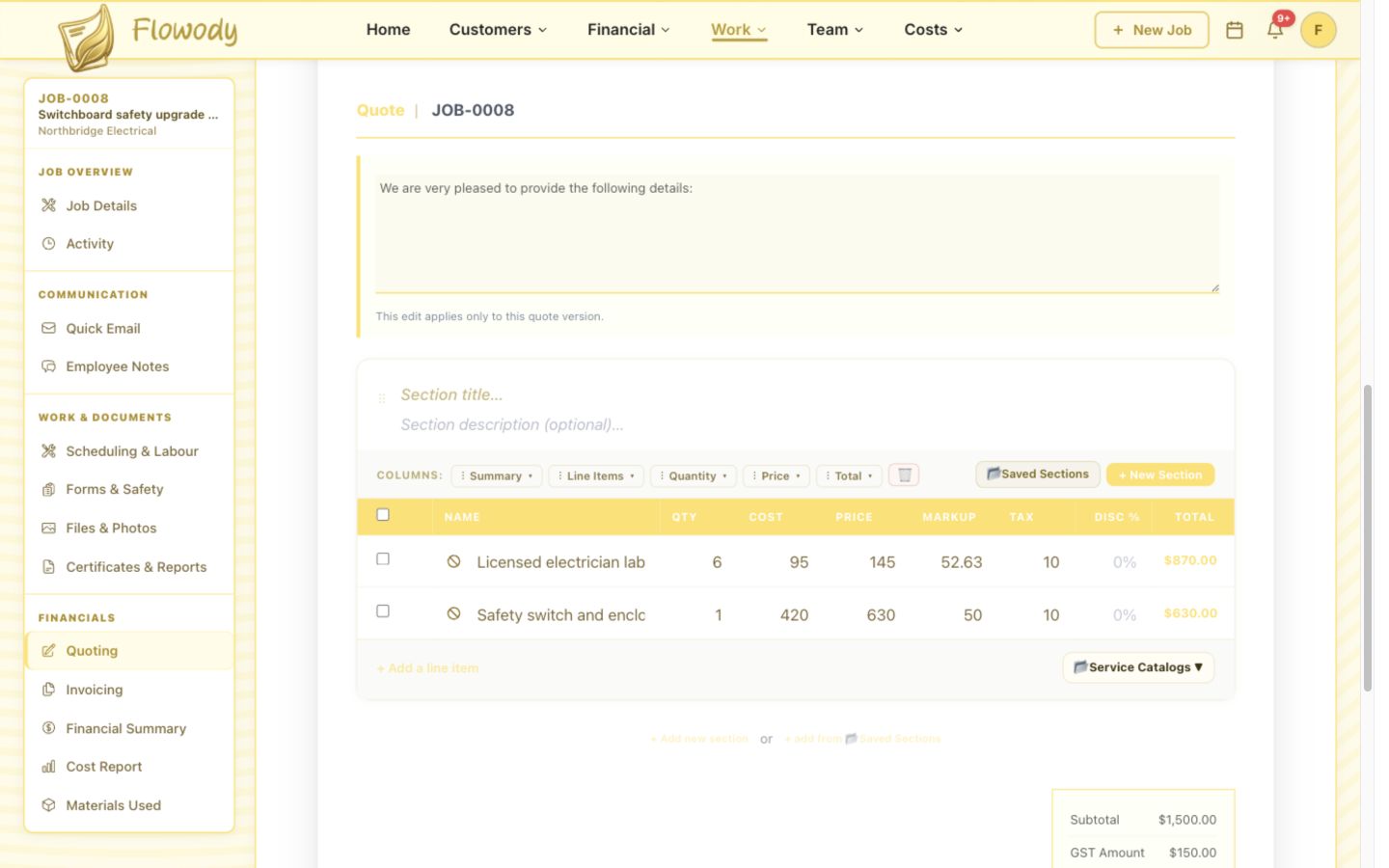
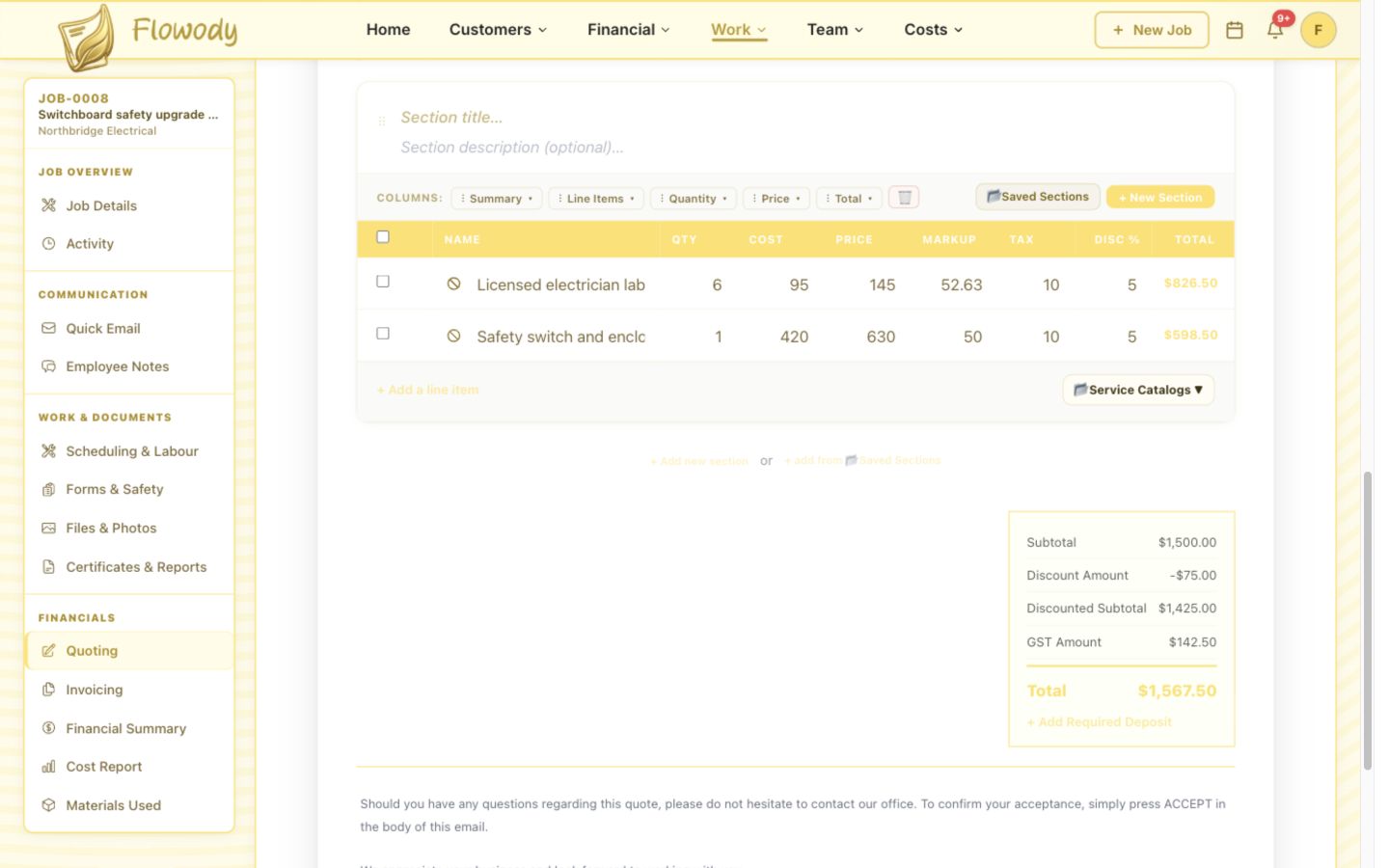
Complete Job title and any optional job details, then select Create Quote. Enter each item's Name, Qty, Cost and Price, and select + Add a line item for each additional labour or material row.
Check discount, GST and total
Open Apply discount / markup from the quote toolbar and apply any discount. Review the automatically calculated Subtotal, Discount Amount, Discounted Subtotal, GST Amount and Total.
Record quote and access notes
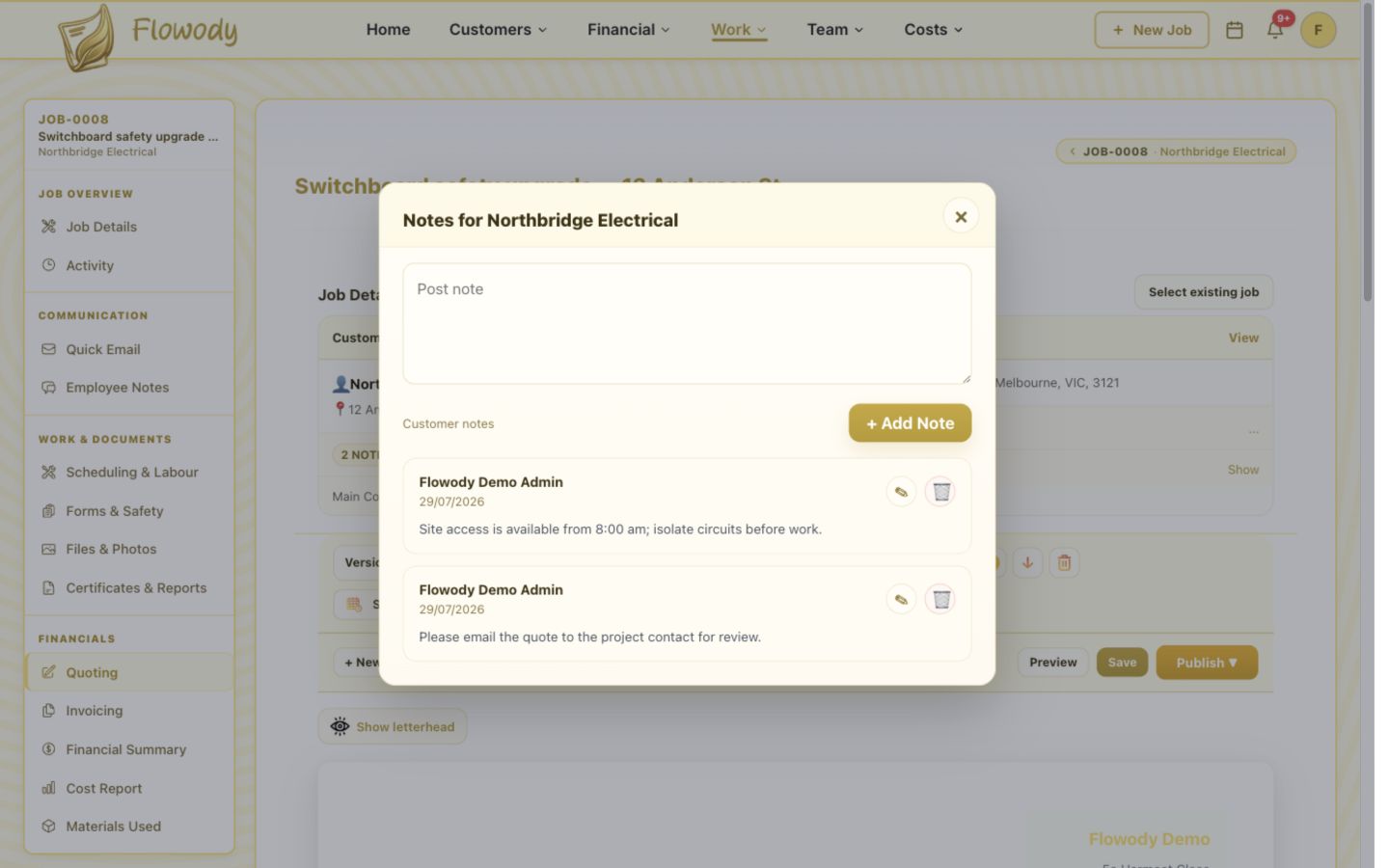
Open the note counter beside Customer or Site, enter the relevant instruction in Post note, then select + Add Note. Use these notes for quote follow-up or site-access information.
Prepare the quote email
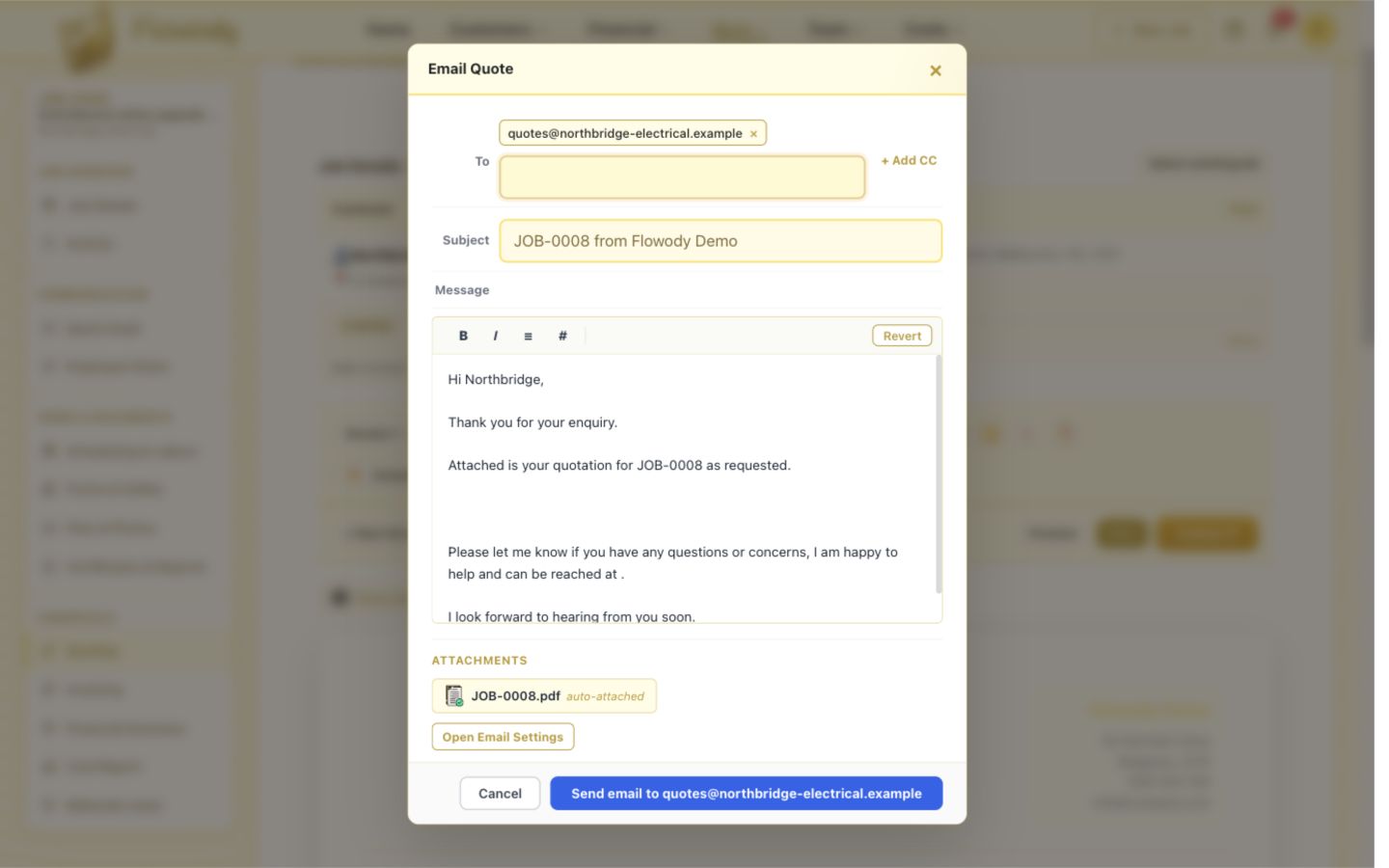
Select the Email quote icon in the quote toolbar, then review the To address, Subject, Message and automatically attached quote PDF before selecting Send email.
Frequently asked questions
Does creating a quote also create a job?
Yes. Selecting Create Quote creates a job-linked draft and assigns its job number automatically. The same customer, site and quote details remain connected as the work progresses.
Can I edit a quote after it has been sent?
Yes. You can update a quote and send the revised version to the customer. The quote keeps its number so your records stay consistent.
How is GST calculated on a quote?
GST is applied to the discounted subtotal using the tax rate set in your general settings. The GST amount and the total including GST are both shown on the quote summary.