How to convert an accepted quote to a job in Flowody
A Flowody quote is already linked to its job record, so you do not need to re-enter the customer, site or quoted work after acceptance. Open the accepted quote's job and use Scheduling & Labour to assign your team and place the work on the calendar.
Open the accepted quote's job
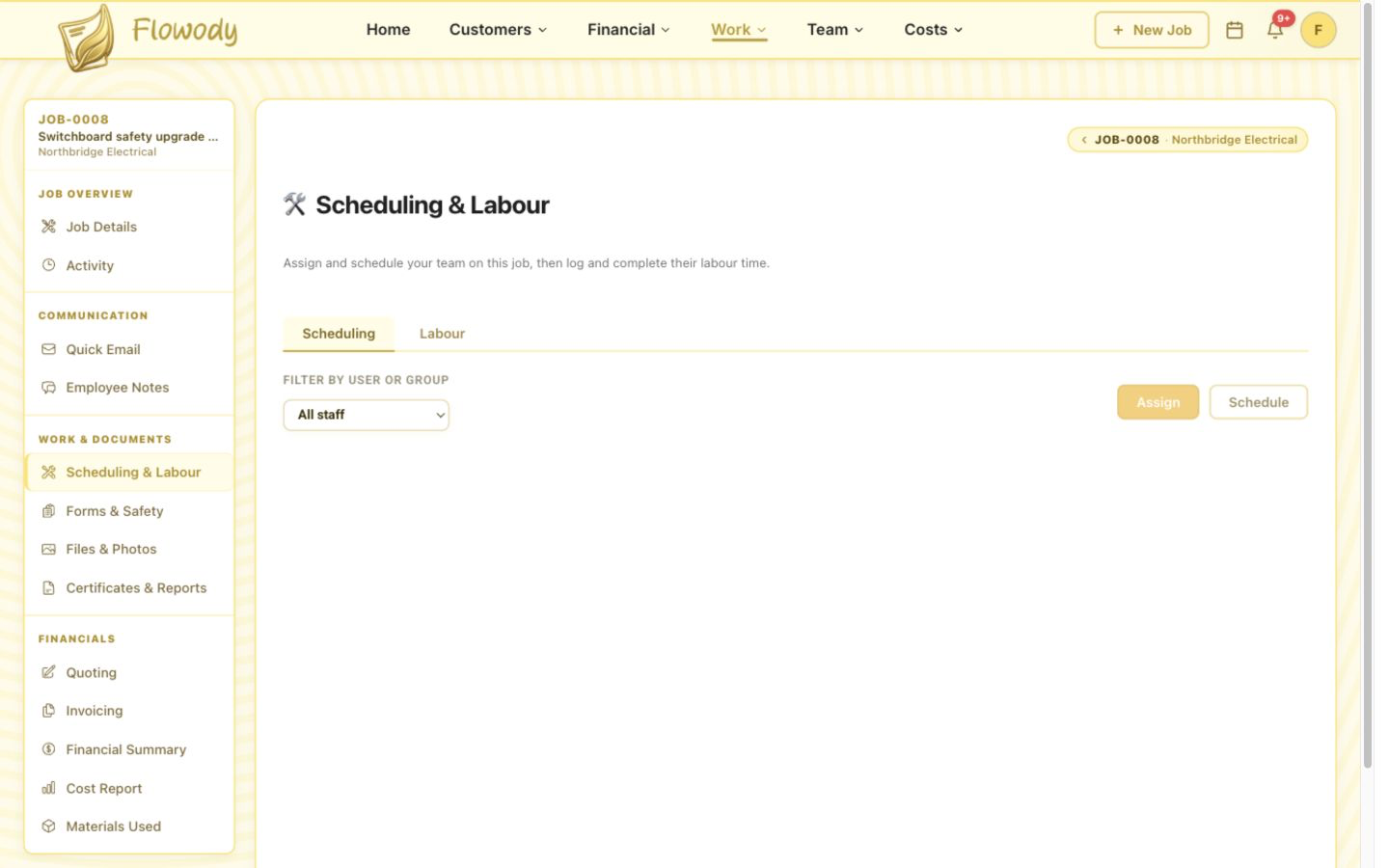
Open the job linked to the accepted quote, then select Scheduling & Labour under Work & Documents in the left sidebar. Before anything is booked, the Scheduling tab is empty and Assign and Schedule remain unavailable until you select a team member.
Select a team member and Schedule
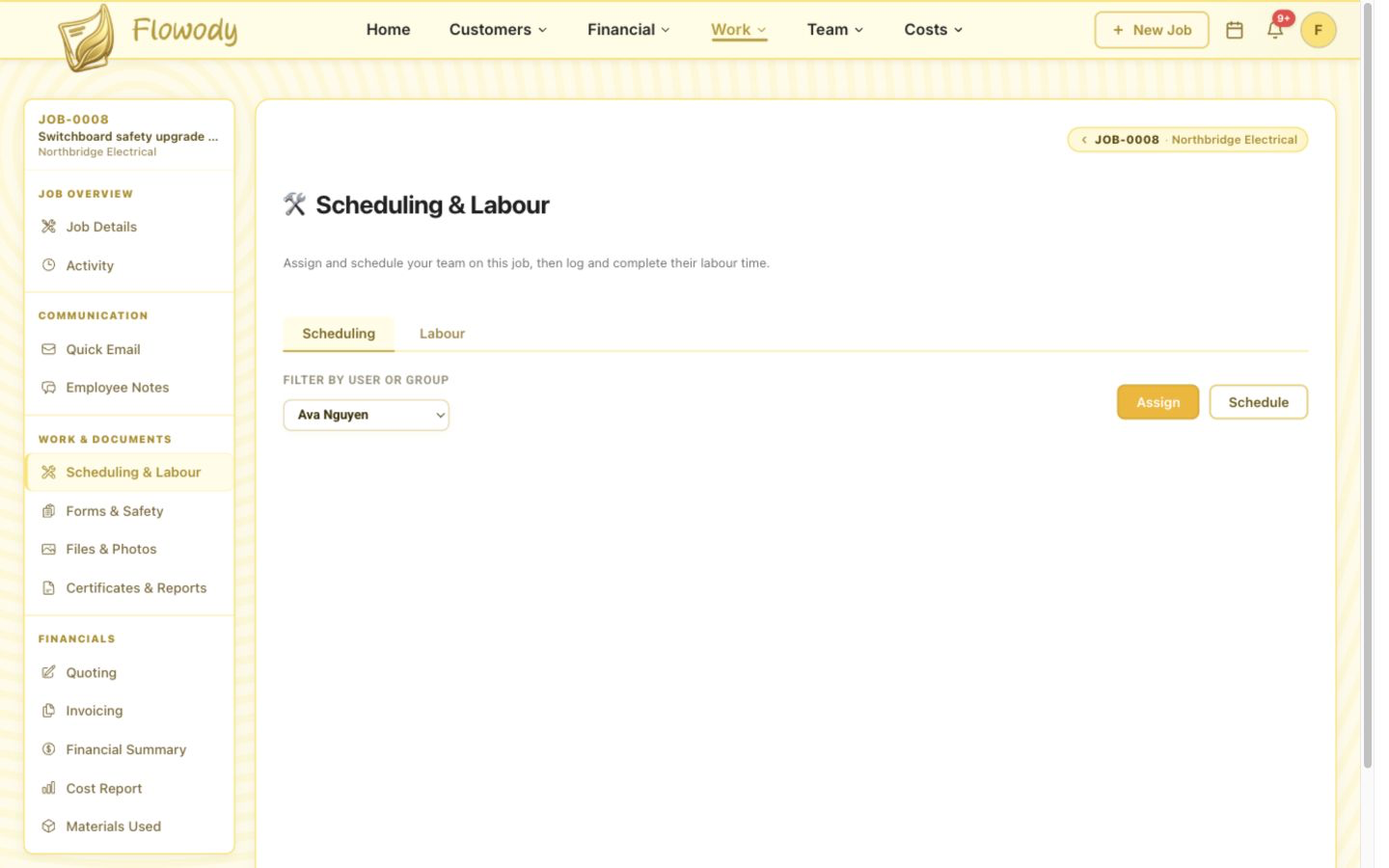
Open Filter by User or Group and select the employee you want to book. In this example, Ava Nguyen is selected. Select Schedule to open the calendar and reserve a date and time. Assign only associates the employee with the job; it does not create a calendar booking.
Choose the date and start time
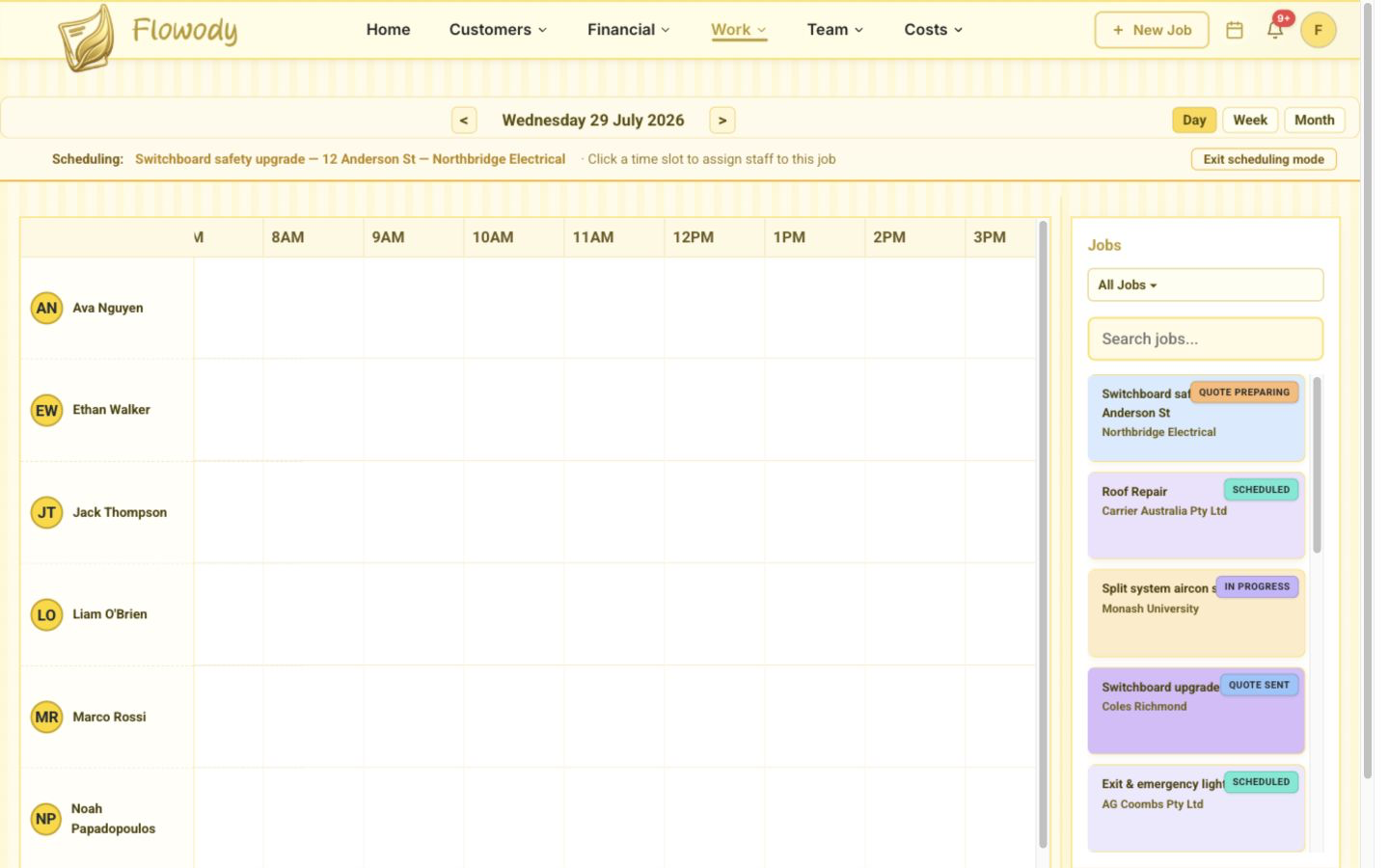
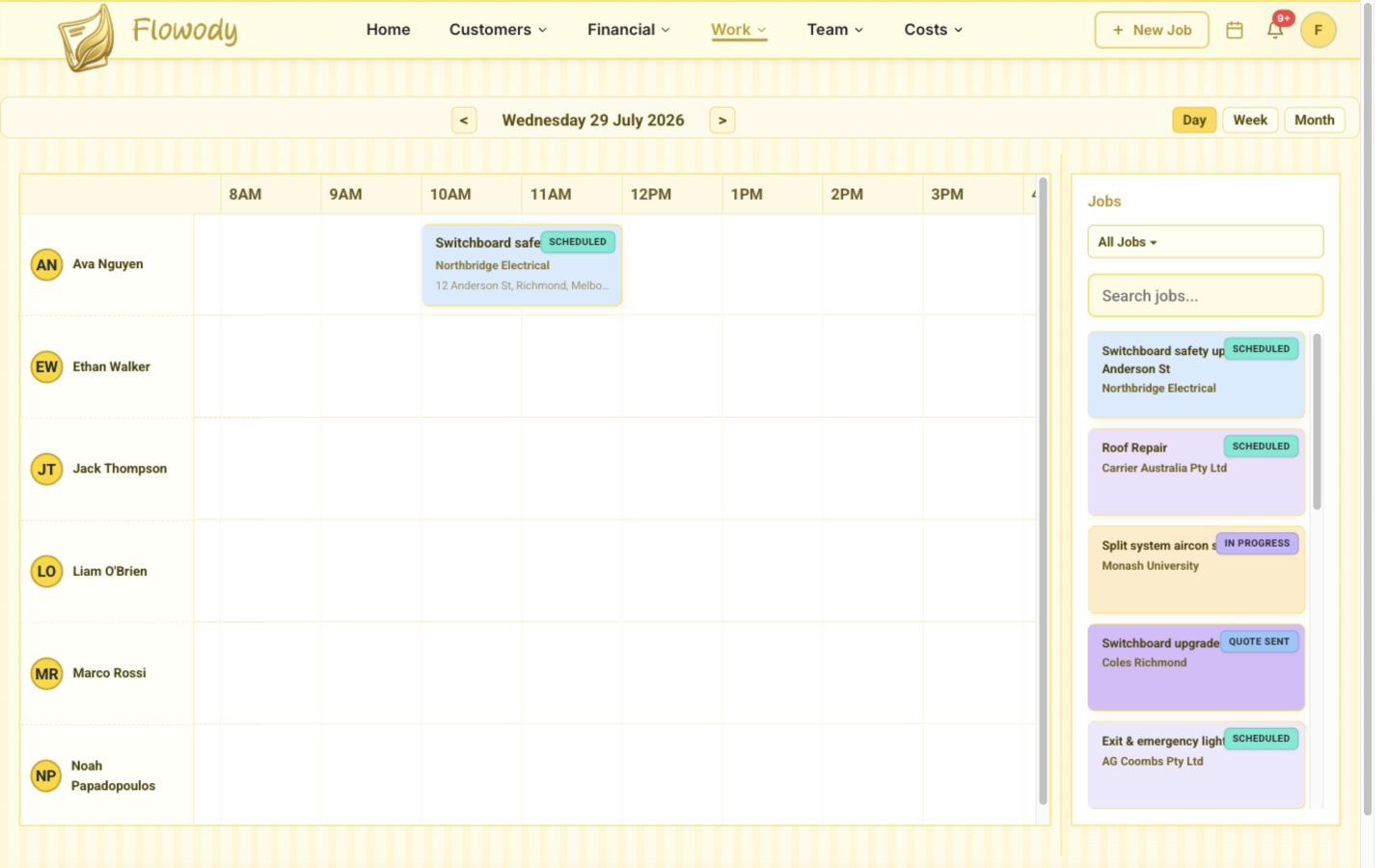
After selecting Schedule, use the calendar date controls and Day, Week or Month views to find the required day. In Day view, select a time slot in the employee's row to create the first one-hour block.
Add more staff or time blocks
Return to Scheduling & Labour and repeat the employee selection and Schedule actions for every additional team member. Repeat the process on other dates to split the job across multiple days; Flowody keeps every employee and time block grouped under the same job.
Adjust the start and end time
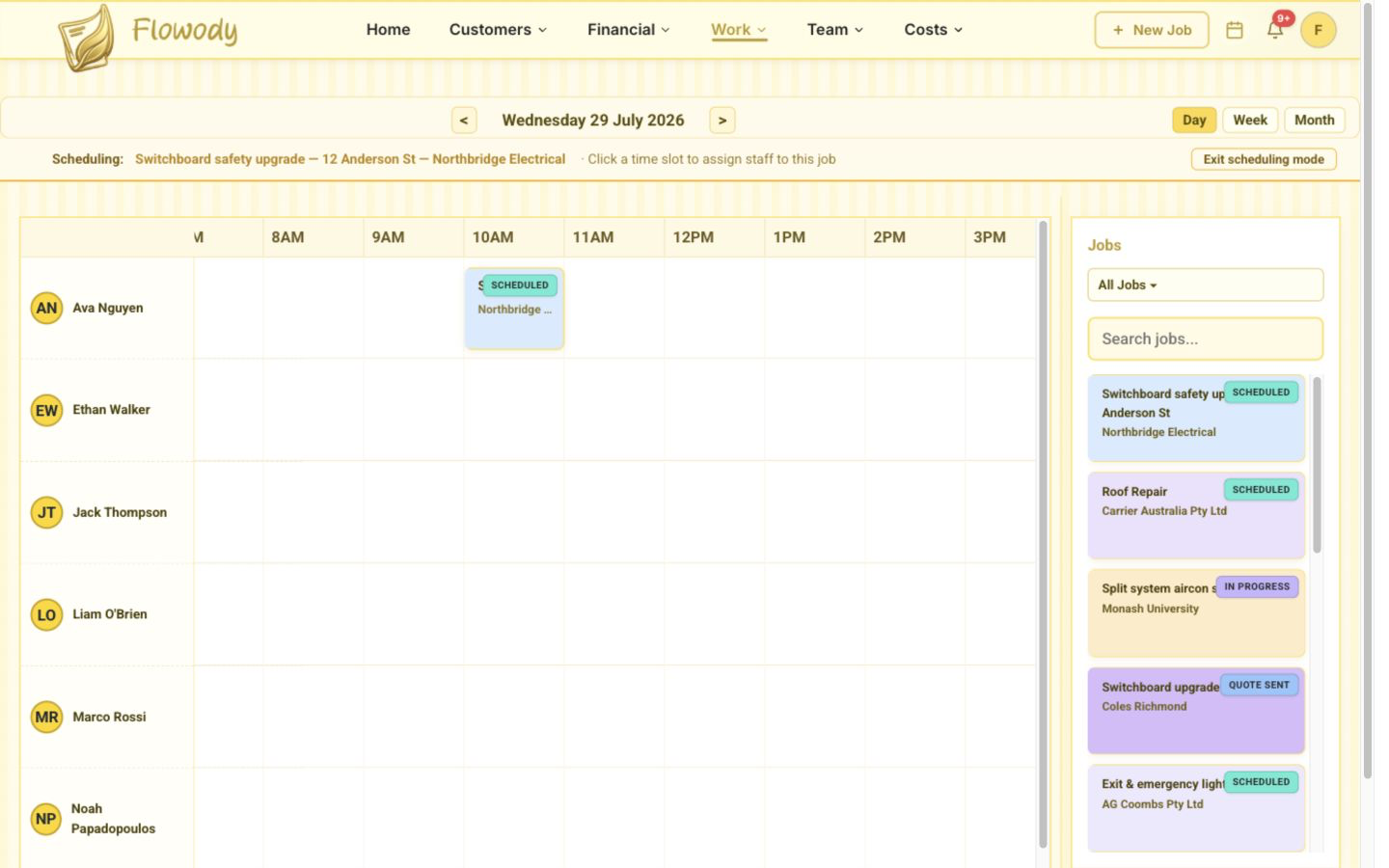
Move the pointer over the scheduled job block, then drag its left edge to change the start time or its right edge to change the end time. Flowody snaps the resized event to 15-minute intervals and saves the new duration automatically.
Review or edit the event
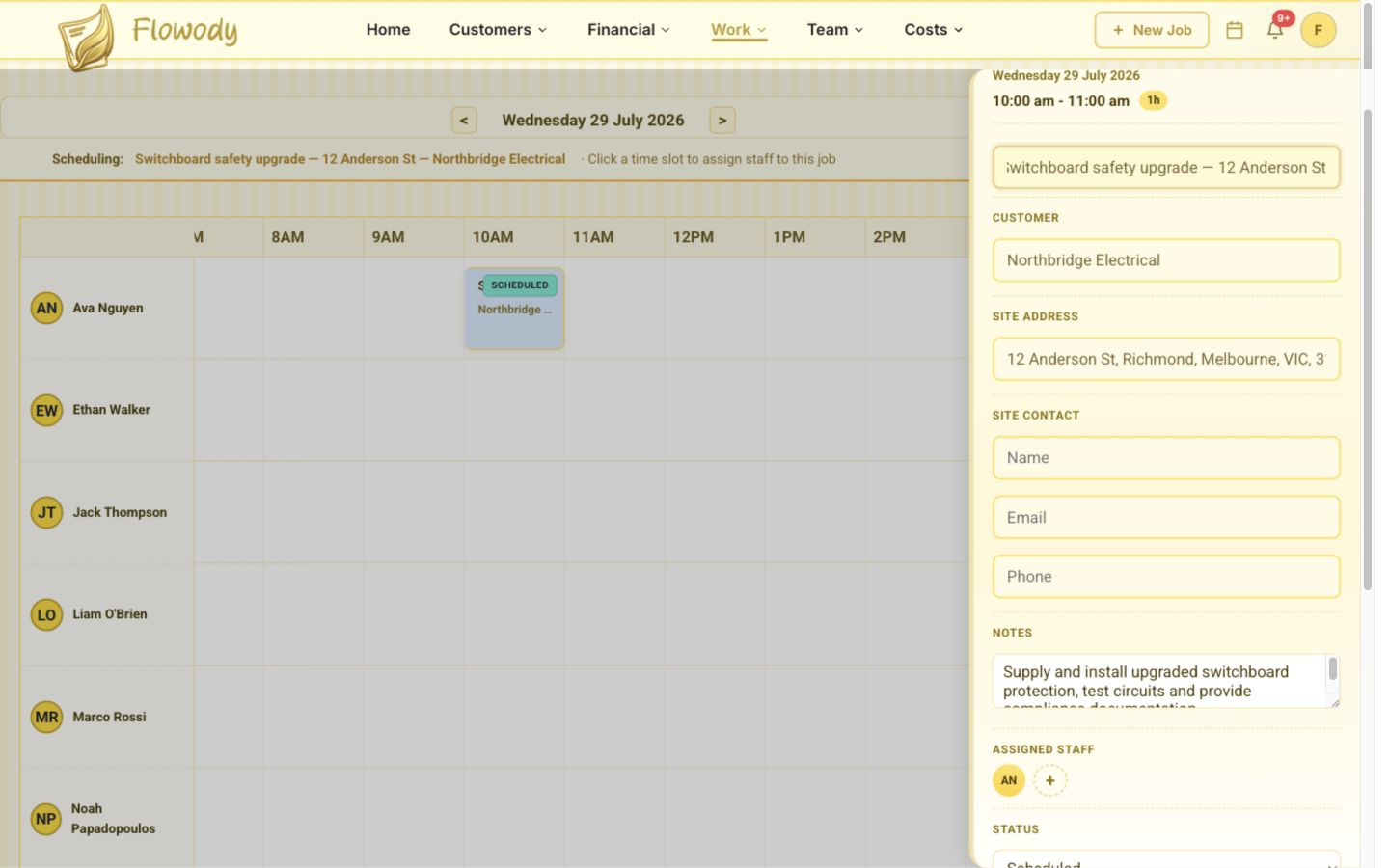
Select the event to review its date, time, duration, customer, site, notes, assigned staff and status. Select Edit event to make changes and Save changes when finished, or select View Job to open the full job record.
Frequently asked questions
Do I need to create another job after the quote is accepted?
No. The quote is already linked to its Flowody job record. Open that job and use Scheduling & Labour to book the accepted work.
How do I create a job that does not have a quote?
Open Calendar, move the pointer over an empty time slot in the required employee's row and select the + button to create a new job directly.
What happens automatically when I schedule a job?
Flowody creates a one-hour calendar event in the selected employee's row, assigns that employee and changes the job status to Scheduled.
Can I change the scheduled employee later?
Yes. Open the event, select Edit event and update Assigned Staff before selecting Save changes.
Can I schedule several employees or multiple days?
Yes. On Scheduling & Labour, select each employee and use Schedule to create their time block. Repeat the process on any additional dates required for the job.
How do I change a job's start or end time?
Drag the left edge of the calendar block to change its start time or the right edge to change its end time. The event snaps to 15-minute intervals.
Can I see more than one day at a time?
Yes. Use the Day, Week and Month buttons at the top of the calendar to change the calendar view.