How to create and send an invoice in Flowody
Invoices are created inside the job, so the customer, site and job number stay connected. Flowody saves invoice changes automatically and calculates GST and totals as you enter each line.
Open job invoicing
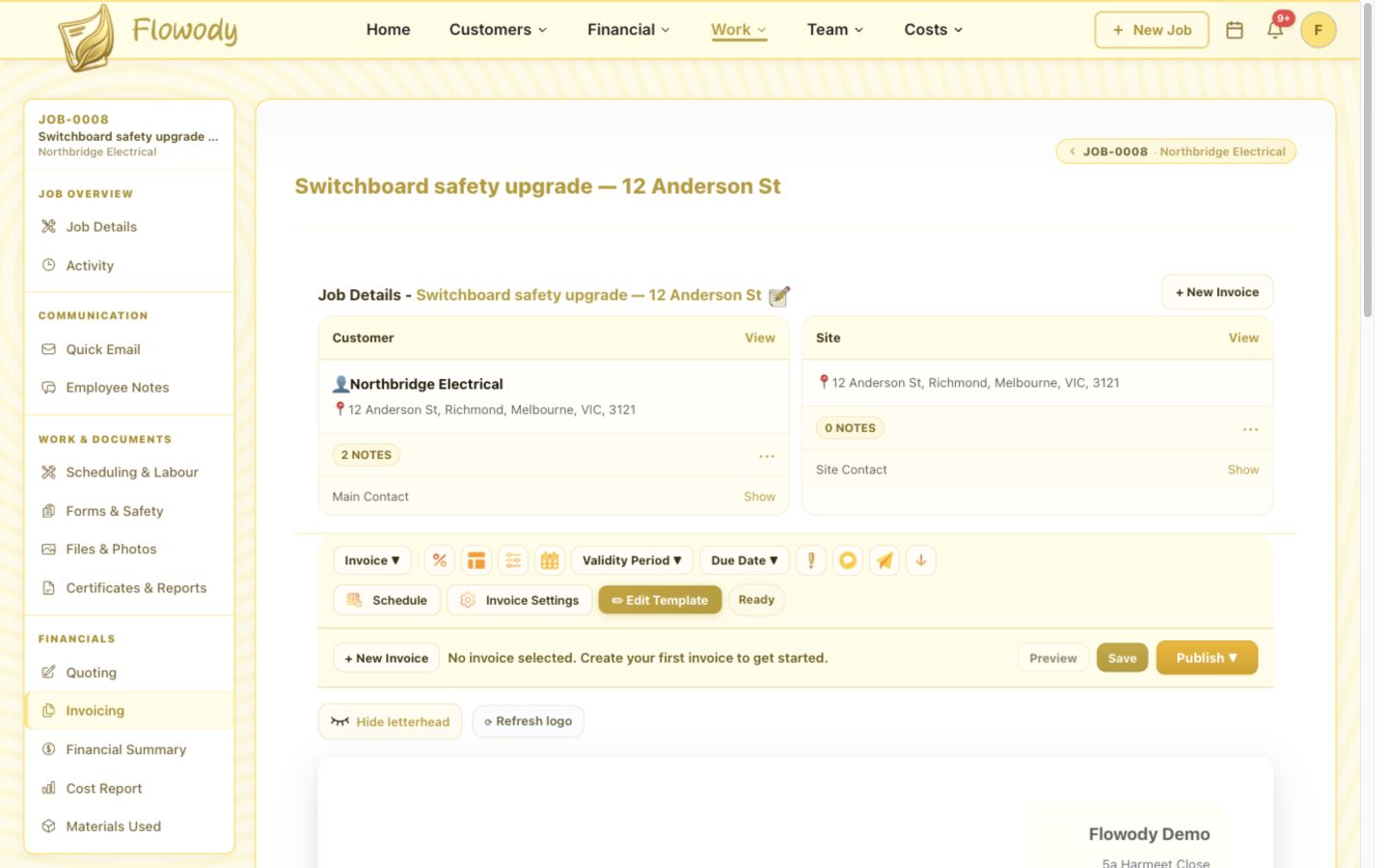
Open the job and select Invoicing under Financials in the left sidebar. The page shows existing invoices or the message No invoice selected when the job has not been invoiced.
Create the invoice
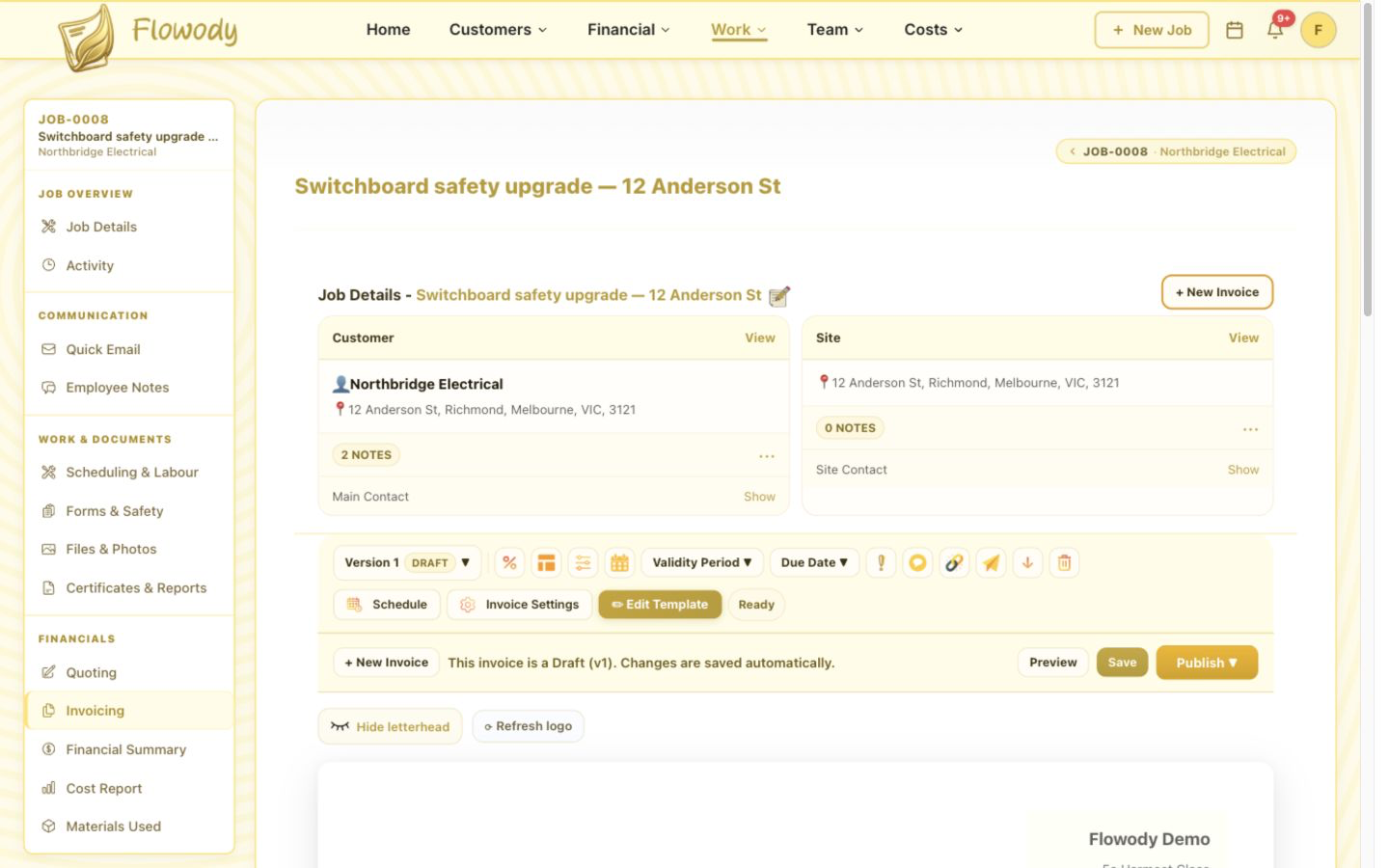
Select + New Invoice. Flowody copies the job's customer, site and job number, sets the invoice and due dates, and assigns an invoice number when the draft begins saving.
Add labour and materials
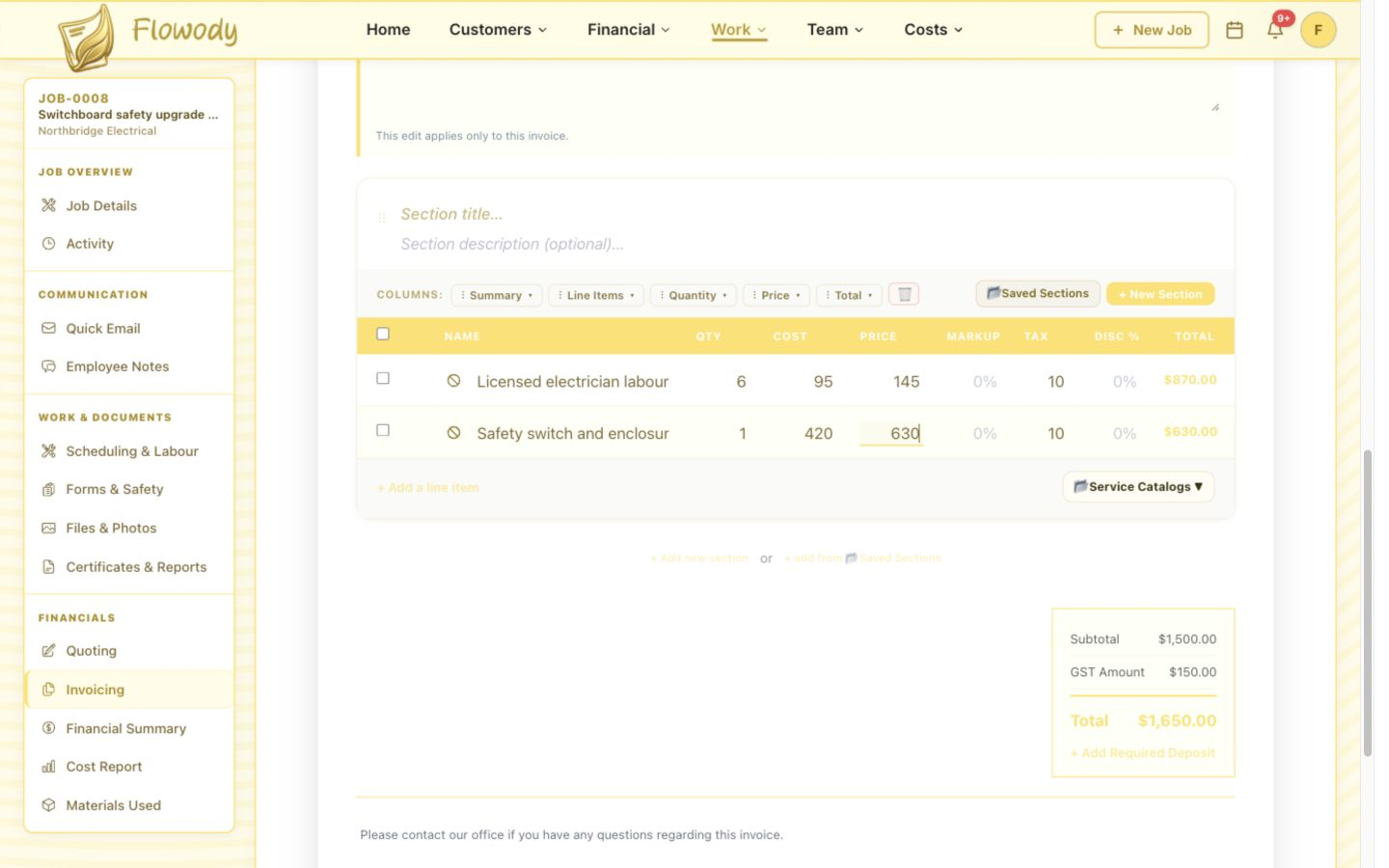
Enter each line's Name, Qty, Cost and Price, then select + Add a line item for additional work or materials. Flowody calculates each line total and saves changes automatically.
Check GST and the total
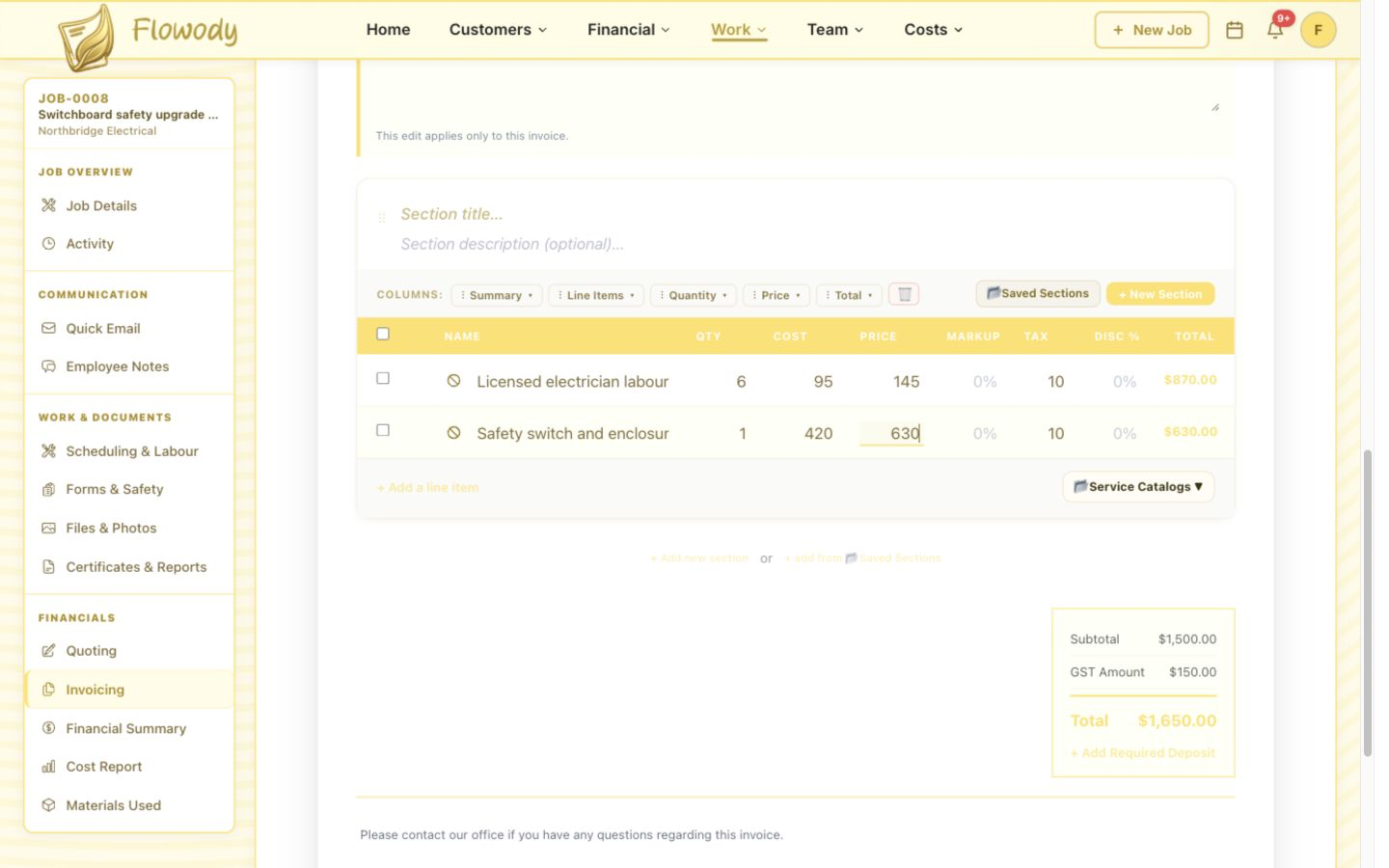
Review Subtotal, GST Amount and Total beneath the line items. If required, use the discount control in the invoice toolbar or select + Add Required Deposit.
Prepare the invoice email
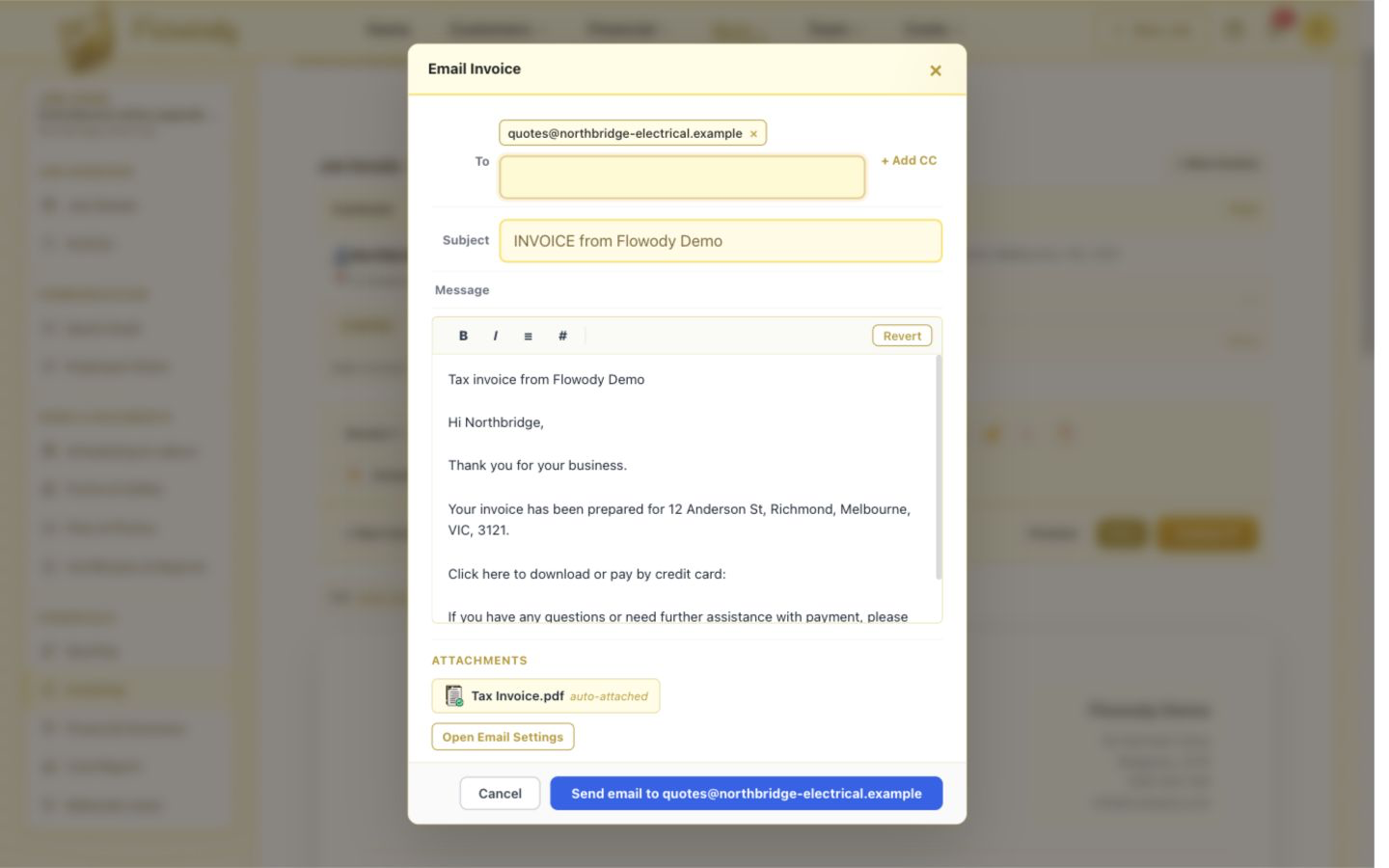
Select the email icon in the invoice toolbar. Review To, Subject, Message and the automatically attached Tax Invoice PDF, then select Send email when everything is correct.
Frequently asked questions
Does Flowody connect the invoice to the job?
Yes. The invoice remains linked to the job, customer, site and job number.
When is the invoice number generated?
Flowody assigns the invoice number automatically when the new draft begins saving.
How is GST calculated?
Flowody calculates GST from the taxable invoice lines and displays the GST Amount separately before the final Total.