How to set up renewal reminders and collect booking requests
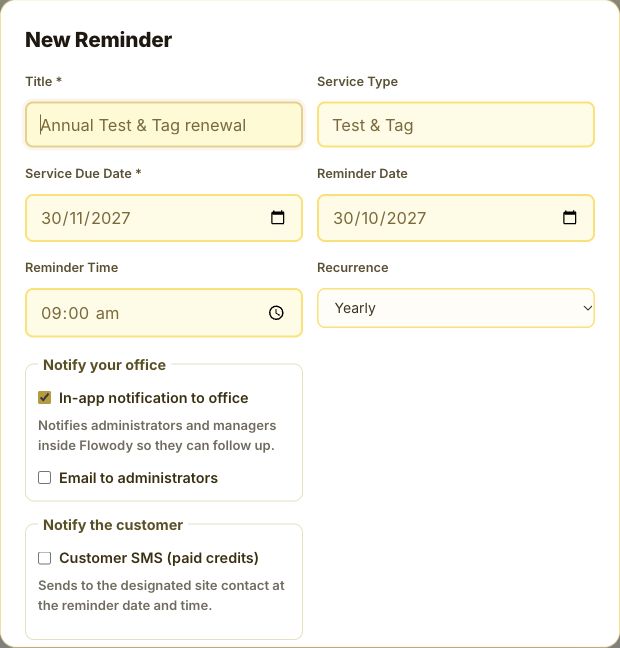
Use a renewal reminder when work is due again at a customer site, such as annual Test & Tag or quarterly maintenance. This walkthrough uses the Northbridge Electrical site in Flowody Demo. The service is due on 30 November 2027, and the office reminder is set for 30 October at 9 am.
Choose who needs the reminder
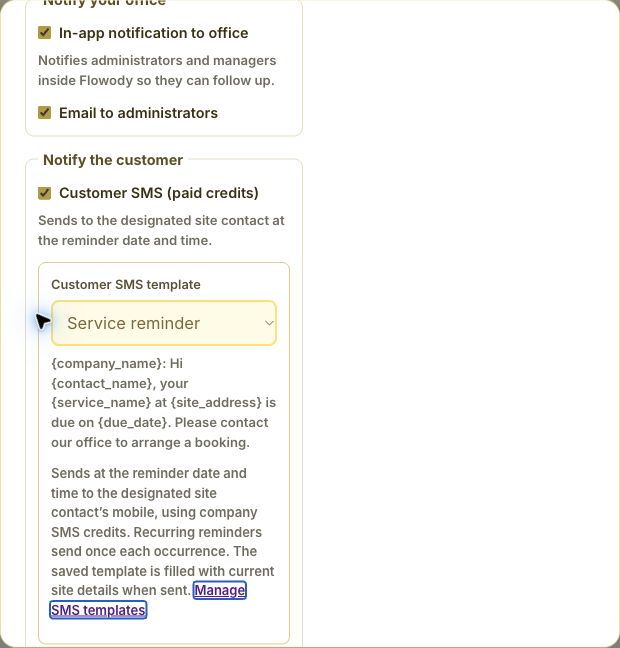
In-app notification to office adds an alert to the notification bell in Flowody for eligible office staff, such as administrators and managers, subject to their notification preferences. Email to administrators sends a scheduled email to the office. You can select either or both.
Customer SMS sends a scheduled text to the designated site contact’s mobile. It uses paid SMS credits and requires a saved Service Reminder SMS template. Customer email is a separate action under Customer Communication. Use it to send an email with the Accept Service button so the customer can request a booking.
Add the reminder from the site page
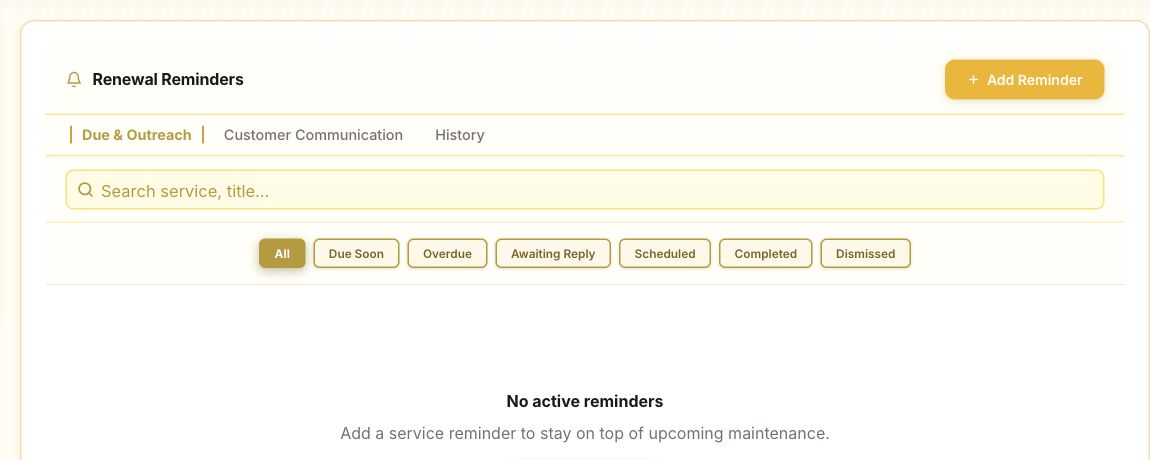
Open Customers → Sites and select the address where the service is due. For customer SMS, first check the designated contact and mobile number on the site. Then open Renewal Reminders in the site sidebar, select Due & Outreach and click Add Reminder.
Set the service due date and reminder schedule
Enter a title and Service Due Date. Set Reminder Date and Reminder Time for when you want the alert to go out. If you leave Reminder Date blank, Flowody uses the due date. The time uses your company’s time zone. Choose One-time, Quarterly, 6-Monthly or Yearly. Add a service type and any notes that will help the office follow up.
Choose office alerts and optional customer SMS
Under Notify your office, choose In-app notification to office, Email to administrators or both. To text the customer, tick Customer SMS and pick a saved reminder template. Use Manage SMS templates if you need to create or update one. Check the site mobile and your SMS credits. Flowody fills in the template with current site details when the text is sent.
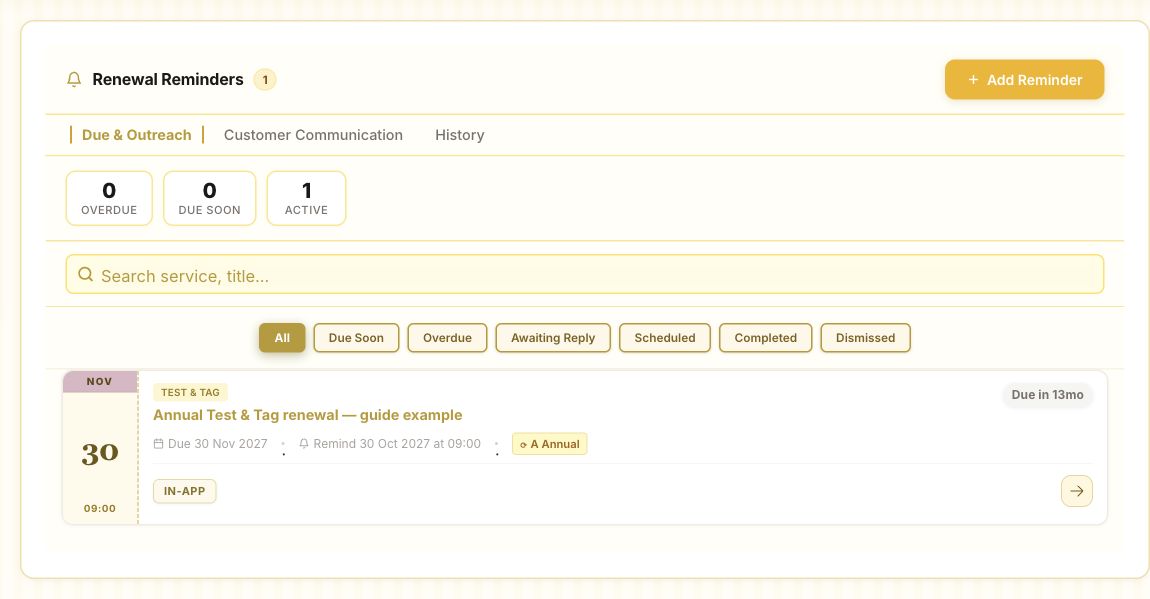
Save the reminder and find it again
Click Create Reminder. The example is saved with in-app delivery for the office. It appears under Due & Outreach on the site and under Work → Renewal Reminders across the company. Open it with the arrow, use the pencil on the site card to edit it, and check the site’s History tab for delivery and status activity.
Prepare a customer email
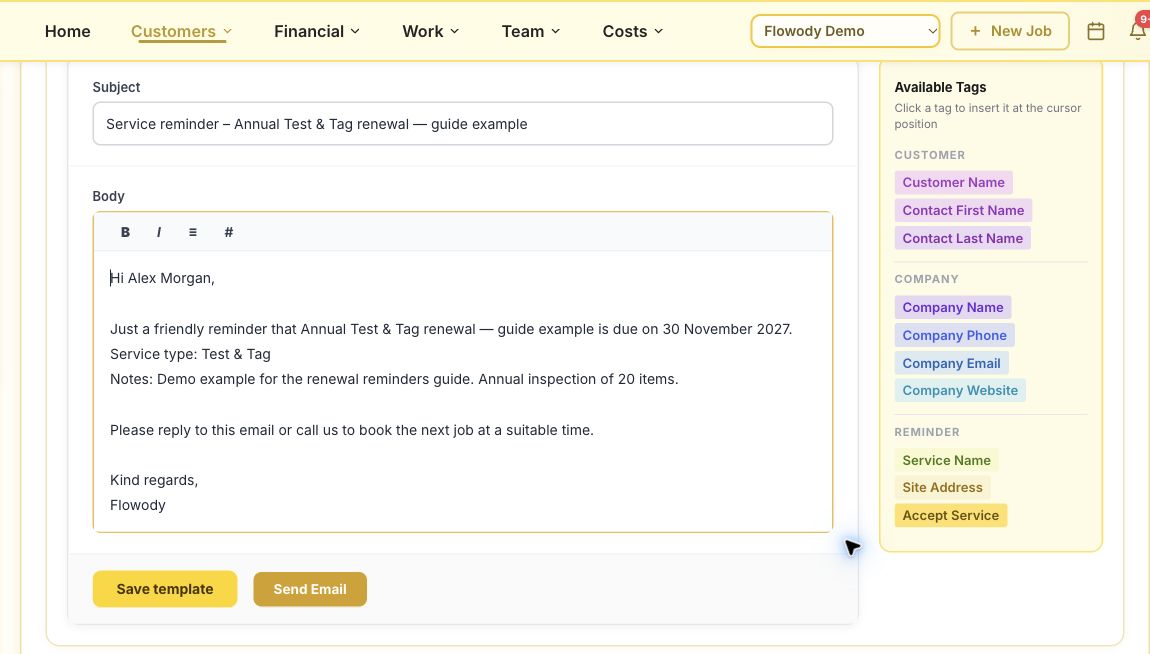
On the saved site reminder card, click the envelope icon to open Customer Communication. In the Email tab, check the To address, subject and message. Add the service and due date, and tell the customer how to suggest a time. Use the Accept Service tag if you want to position the booking button in the message.
Preview the email and check the booking button
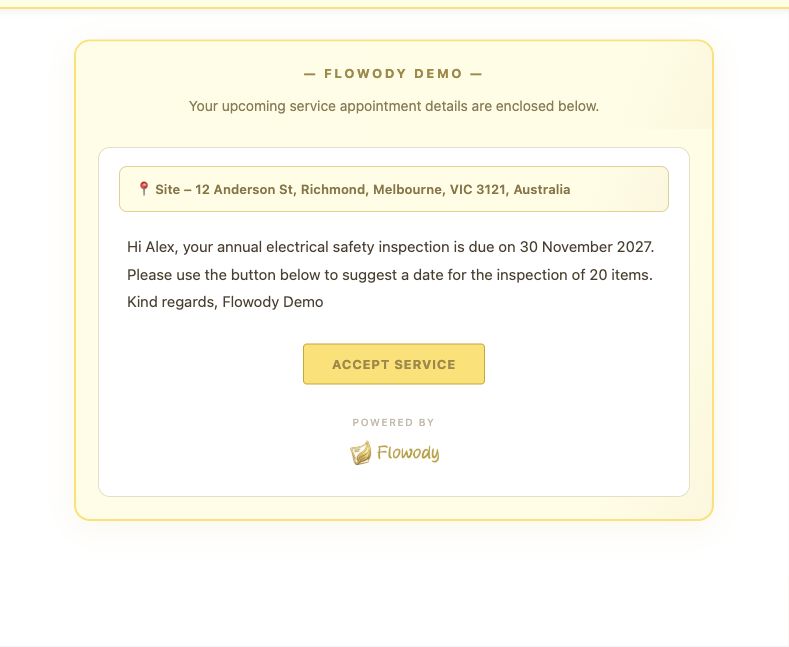
Select Preview to see what the customer will receive and check for the Accept Service button. When you are ready to contact the customer, select Send Email. This action uses your company’s email sending permissions. In the demo, we used the preview and created a link without sending an email.
Create a link to share separately
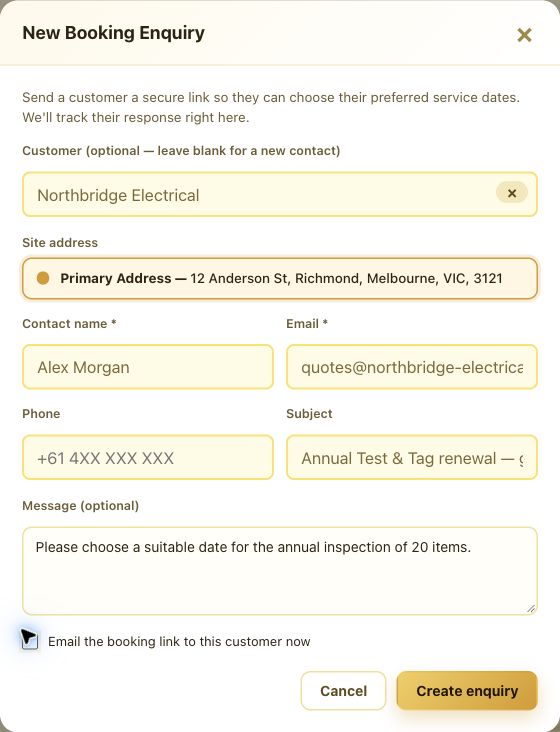
For a link you can copy, go to Work → Booking Requests → New Enquiry. Select an existing customer and the site if available, or enter the contact details manually. Add a subject and an optional message. Clear Email the booking link to this customer now, then select Create enquiry and Copy. Share the link with the intended contact. The screenshots that follow show a submitted demo request created through this option.
Customer checks their contact and site
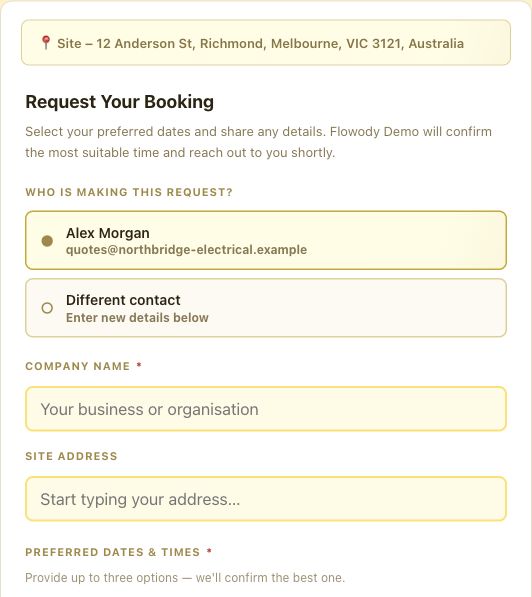
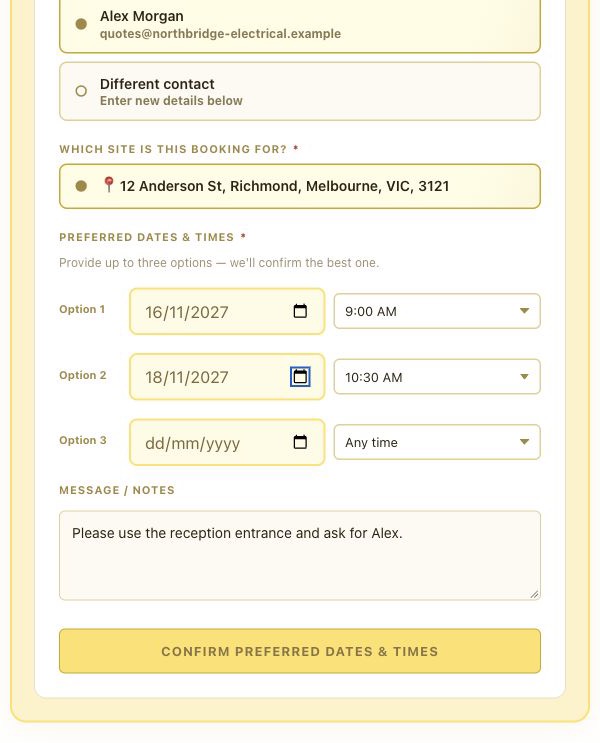
The customer opens Accept Service from the email or follows the shared link. On Request Your Booking, they select their prefilled contact or choose Different contact and enter their name and email. They check the site and provide a company name or address if the form asks for one.
Customer chooses dates and adds notes
The customer enters at least one preferred date. They can give up to three options and choose a time for each or leave it as Any time. They can add access instructions and answer any required questions, then select Confirm Preferred Dates & Times. The example gives 16 November at 9 am and 18 November at 10:30 am.
Customer sees Request Received
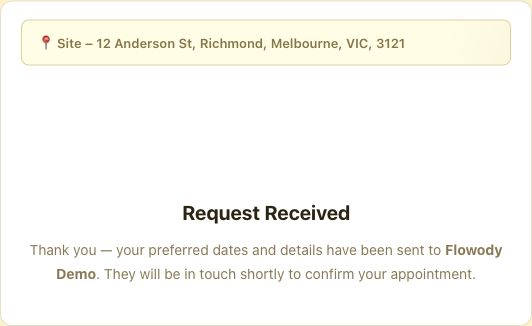
Flowody confirms that the customer’s preferences were submitted. The office reviews the options and contacts the customer to confirm the appointment.
Review the request and confirm the appointment
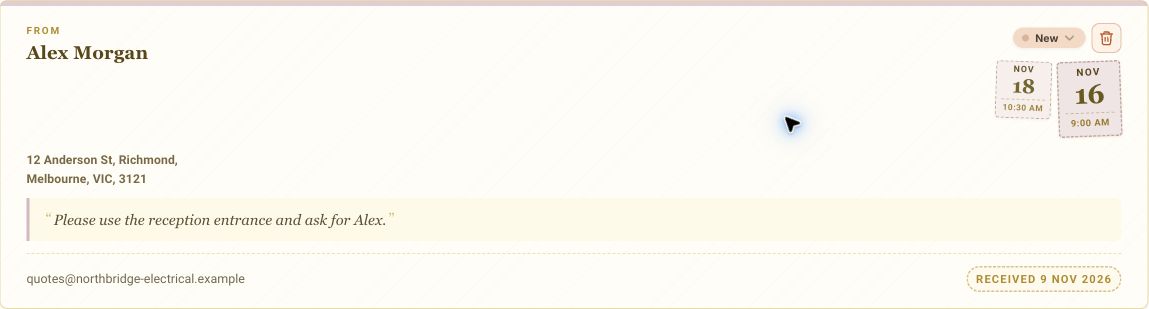
Open Work → Booking Requests and look for the New request. Review the contact, site, preferred times and access notes. Agree on a time with the customer, schedule the job in your calendar and update the request status when confirmed. After the service, review the due date for the next cycle and update the renewal reminder as needed.
Frequently asked questions
Does Email to administrators email the customer?
It sends the scheduled reminder to the office. To email the customer, open the saved reminder’s envelope action and send from Customer Communication.
Why might the scheduled customer SMS be skipped?
Check the designated site contact’s mobile, the saved reminder SMS template and your SMS credit balance. Make sure any details the template uses, such as the company phone number, are filled in. Check History for recorded delivery failures.
What happens when a reminder repeats?
Flowody advances the reminder date according to its recurrence. After the service, review the service due date and title so they reflect the next renewal.
Does submitting a booking request schedule a job?
Submitting the form records the customer’s preferred times in Booking Requests. Your team confirms the appointment with the customer and schedules the job.