How to hide job files from staff in Flowody (admin-only files)
In Flowody, admins can make any job file admin-only. Employees then can't see it, download it or get a notification about it, while admins and managers keep full access. This is useful for test reports, supplier pricing, contracts and other documents your field team doesn't need.
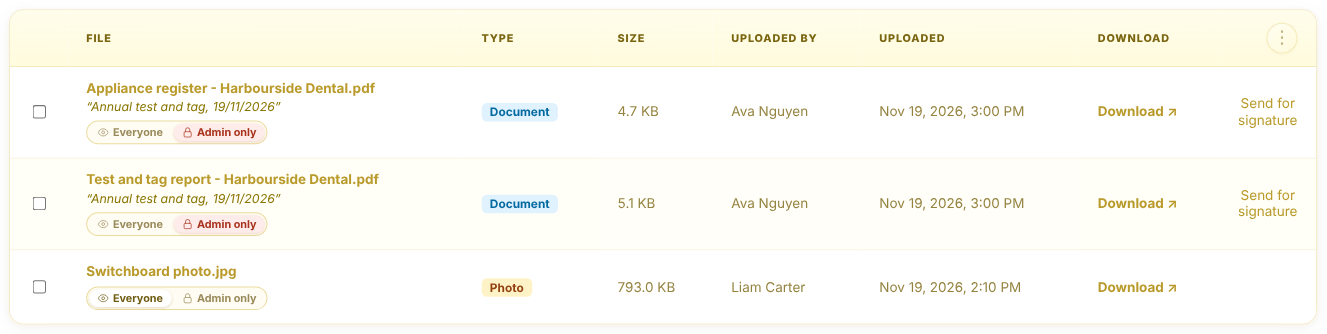
Every file on a job has a visibility setting. Everyone means admins, managers and staff can see it. Admin only means only admins and managers can see or download it; staff never see it in their file lists. The same setting is used on Files & Photos, Certificates & Reports, and the site and customer files shown on a job.
Choose who can see files before uploading
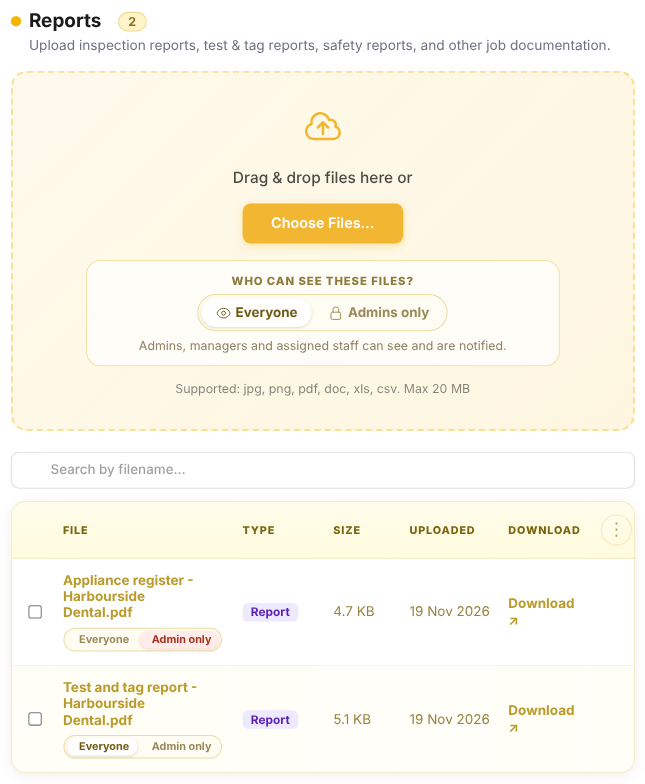
Open the job and select Files & Photos (or Certificates & Reports). Under Choose Files, set Who can see these files? to Everyone or Admins only, then upload. Admin-only uploads are hidden from staff, and only admins and managers are notified about them.

Change visibility on an existing file
Each file shows an Everyone | Admin only switch under its name. Select the other option to change it. Admin-only files are marked in red, so you can see at a glance which files staff can't access.
Change several files at once
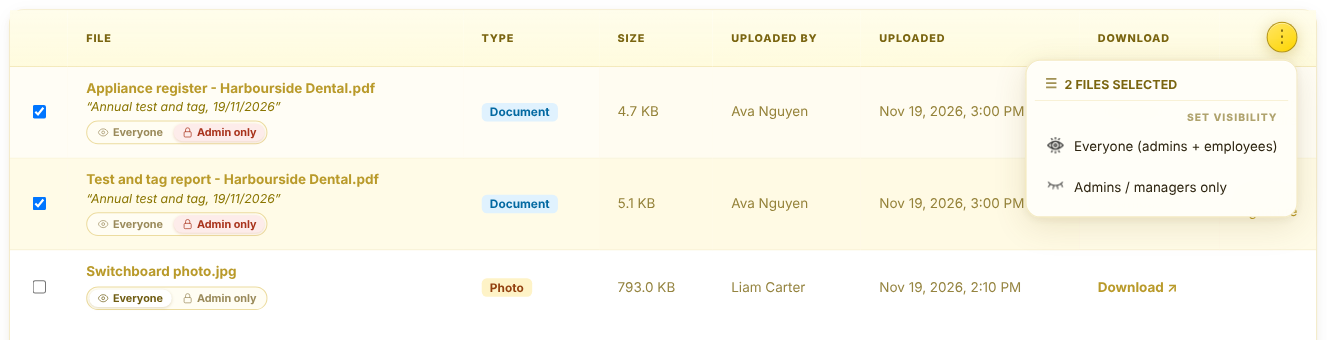
Tick the files you want to change, select the ⋮ button at the right of the table header, then choose Everyone (admins + employees) or Admins / managers only under Set Visibility.
Do the same for certificates and reports
Certificates & Reports has the same upload choice and the same switch on every file, including certificates and reports saved against the site or customer. Use Admins only for test reports and internal documents your technicians don't need.
Check who changed it
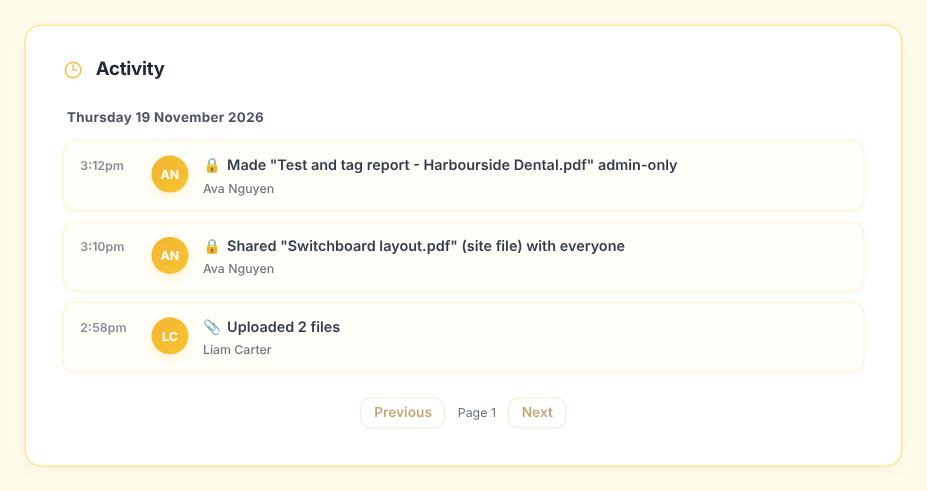
Open the job's Activity page. Each change made from the job is recorded with a lock icon, the file name, who made the change and when, for example Made "Test and tag report.pdf" admin-only.
Frequently asked questions
What can staff see when a file is admin-only?
Nothing. Admin-only files don't appear in their file lists, and the download link is blocked for them.
Are staff notified about admin-only files?
No. When a file is uploaded as Admins only, only admins and managers receive the new-file notification.
What if I make a file admin-only after uploading it?
It's hidden from staff from that moment. If it was uploaded as Everyone, assigned staff may already have received the new-file notification, so choose Admins only before uploading when you can.
Who can change a file's visibility?
Admins. Managers can see admin-only files but can't change the setting, and staff only see files set to Everyone.